Download and install
- Go to milton.so/download.
- Click the button for your system: Download for macOS, Download for Windows or Download for Linux.
- Install it:
- macOS
- Windows
- Linux
Open the
.dmg file and drag Milton into your Applications folder. Then open Milton from Applications.- When Milton opens, create your account. See Create your account.
You need an internet connection to create your account. After that, Milton works offline, except for sharing, sync and AI features.
Updates
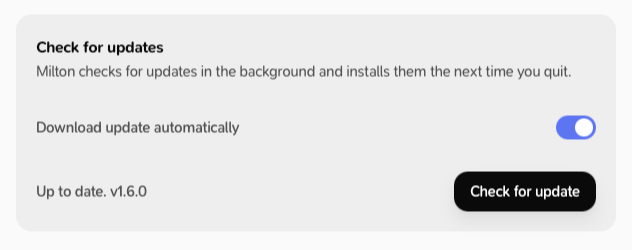
Milton checks for updates in the background, downloads them and installs them the next time you quit. When an update is ready, the sidebar shows Milton is ready to update! with an Update or Restart button and a What’s new. link. To check by hand, open Settings → Updates and click Check for update. If you’re up to date, Milton says “You are on the latest version.” You can turn off Download update automatically on the same page.