

Attach something
- Open the task.
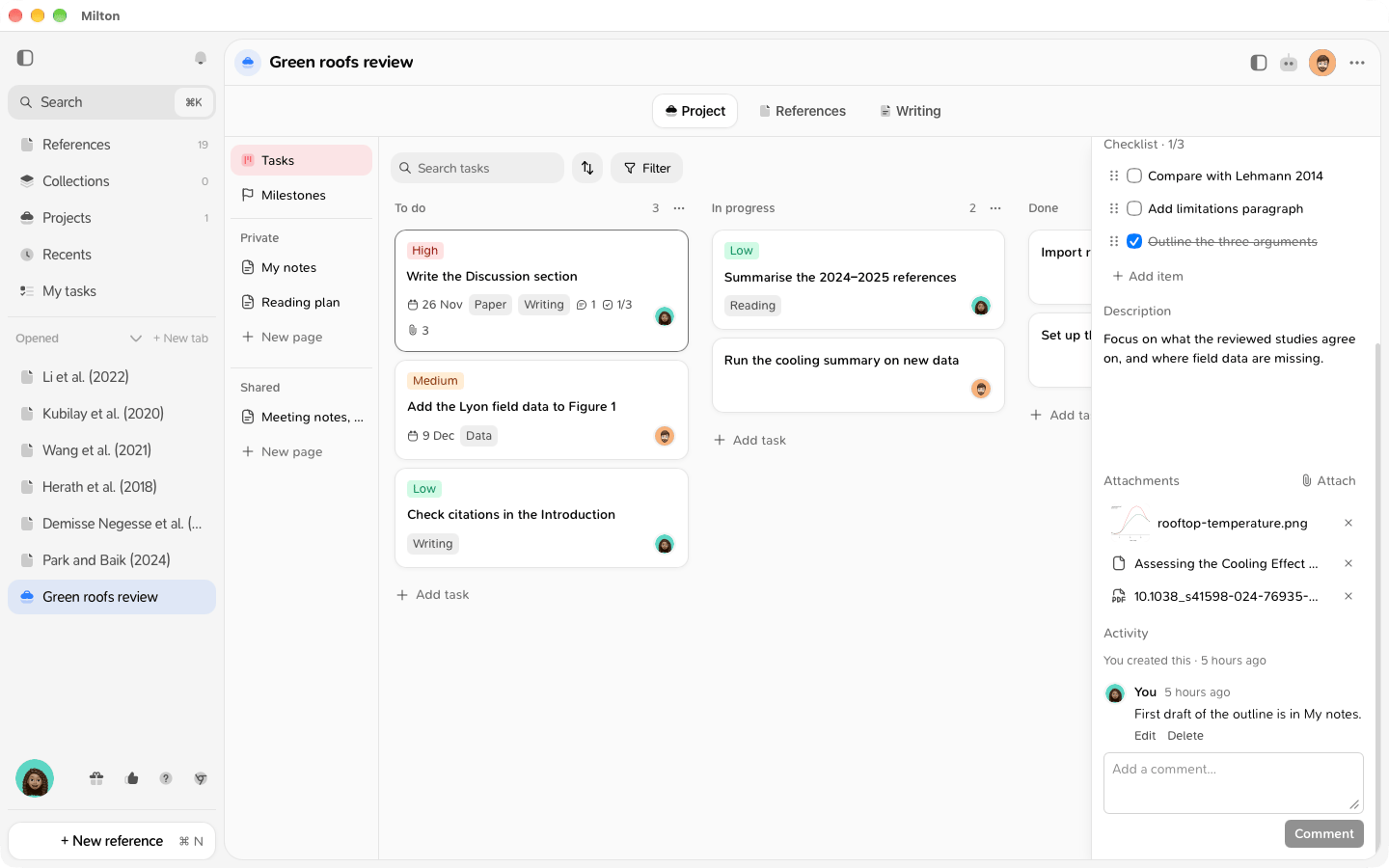
- Under Attachments, click Attach.
- Search with Search files and references, then click a file or a reference of the project. Items already attached show a check mark.
Open or remove an attachment
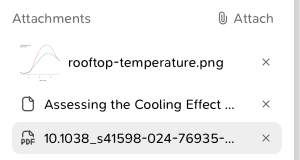
- Click an attachment to open it: a reference opens in its tab, a file opens in the project’s Writing tab.
- Click × on an attachment to remove it from the task. The file or reference itself stays in the project.
Good to know
- A task holds up to 50 attachments.
- If a file is deleted or a reference is removed from the project, the attachment stays on the task as “File unavailable” or “Reference unavailable”. You can still remove it.
- The number of attachments shows on the task’s card.
- Viewers can open attachments, but can’t add or remove them.