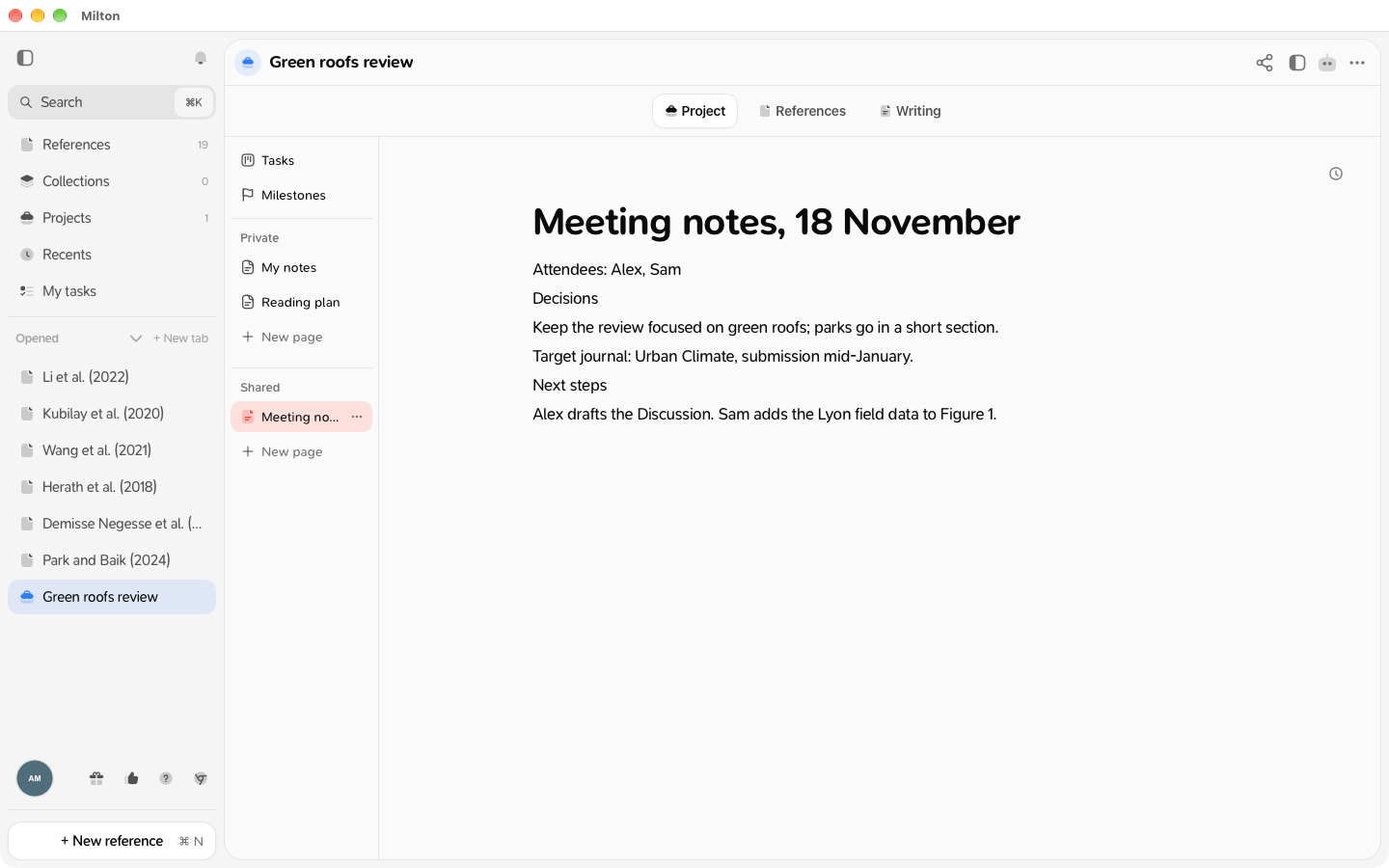
Private and Shared
The column on the left starts with Tasks and Milestones (see Track tasks on a board and Milestones), then lists your pages in two sections:- Private: pages only you can see. They stay on your device and in your own backup. They’re never sent to co-authors or to agents.
- Shared: pages every member of the project can see. In a shared project, members edit them together in real time; viewers can only read.
Create a page
- Open the project and click the Project tab.
-
Click New page in the Private or Shared section.
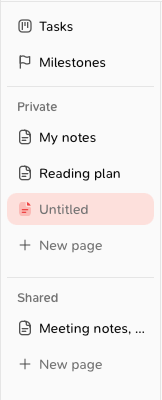
- Type a title. The page starts as “Untitled”.
What you can put in a page
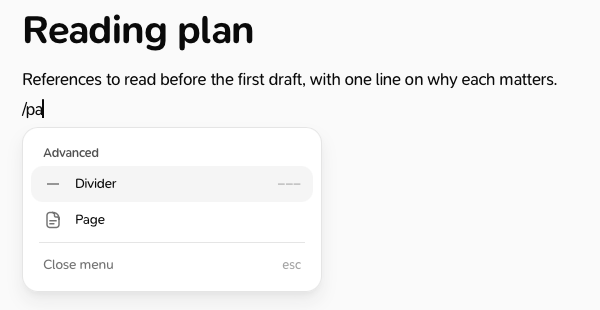
Pages use the same editor as reference notes: headings, lists, to-do lists, code, quotes, callouts, dividers, a table of contents, maths and images. Type [[ to link another page, or @ to mention a co-author, a page, a reference or a file. See Link pages and mention people.Organise pages
- Drag a page in the explorer to reorder it or put it inside another page.
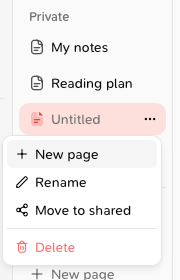
- ⋯ menu on a page: New page, Rename, Move to shared (private pages only), Delete.
Share a private page
- Drag the page into Shared, or choose Move to shared in its ⋯ menu.
-
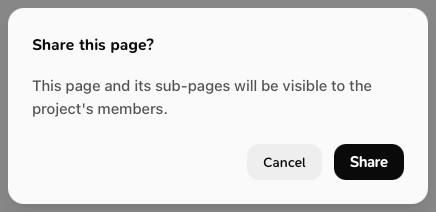
In Share this page?, click Share.