

1. Download it from Overleaf
In Overleaf, open the project’s menu and choose Download → Source. You get a.zip file.
2. Import it into Milton
As a new project: click Projects → + New, then Import an Overleaf project (.zip) instead…. Into an existing project: in its files, click New file → Import Overleaf project…. The files go into a folder named after the zip.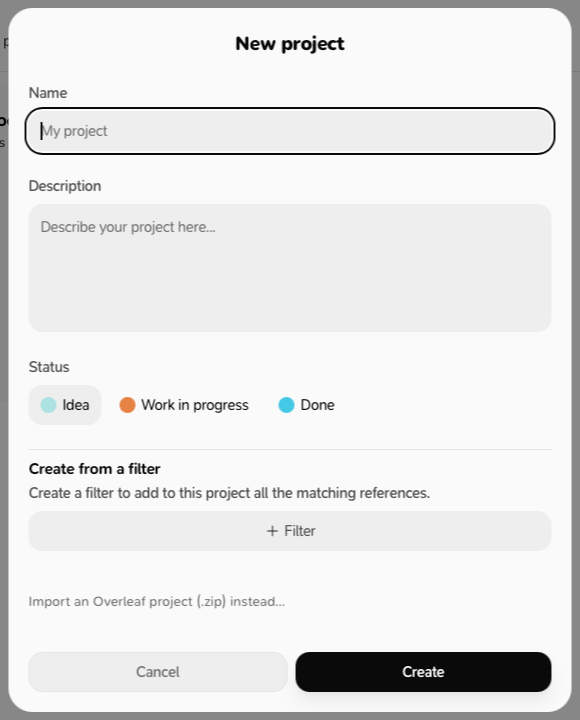
- Click Choose a .zip… and pick the file.
-
Check the summary: number of files, main file, number of references.
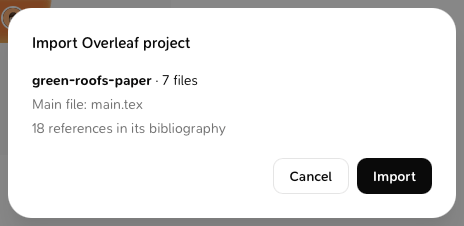
- If Milton asks Which file is the paper?, choose the main file.
- Click Import.
What happens to the bibliography
Every entry of the.bib files your paper cites becomes a reference in your library and in the project. References you already have are matched, not duplicated. The citation keys are kept, so the paper compiles as it did in Overleaf. Milton looks for free PDFs of the new references.
Limits: 5,000 files, 300 MB once unzipped, 100 MB per file.