

Add a comment
- Open the task.
- Type in Add a comment… at the bottom.
- Press Enter or click Comment. Shift + Enter adds a new line.
Mention someone
Type @ in a comment and pick a member of the project. They get a notification: “Mentioned you in a comment on task · project”. Clicking it opens the task. The person the task is assigned to is notified of new comments too: “Commented on your task task · project”.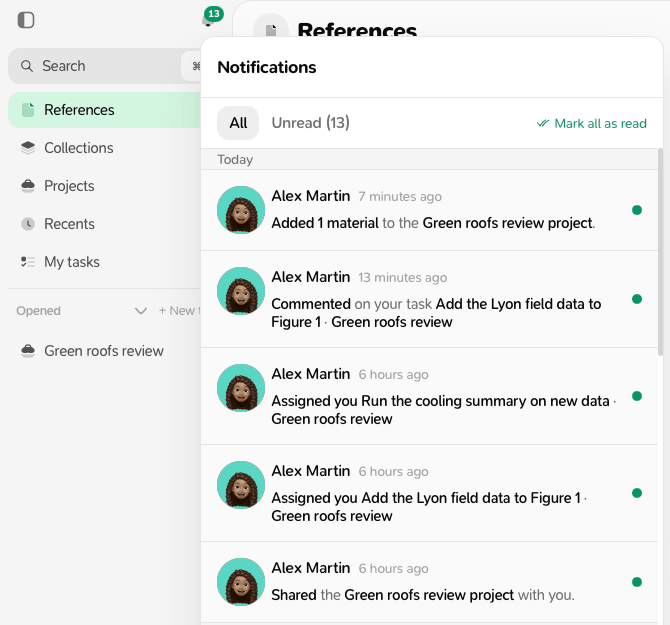
Edit or delete a comment
Under your own comments, click Edit (then Save) or Delete. Deleting doesn’t ask for confirmation. An edited comment is marked “edited”.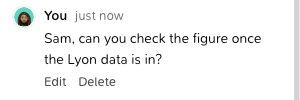
Good to know
- Everyone in the project can comment on tasks, including viewers.
- Comments are listed oldest first, mixed with the task’s changes. See Checklist and activity.
- Milton doesn’t send emails for comments. Notifications appear under the bell in Milton.
- To comment on a passage of a file instead, see Comment on a passage.