

Move around
- Use Previous page and Next page, or type a page number.
- Zoom with Zoom in and Zoom out, or pick Automatic Zoom, Fit Page or a percentage. Milton remembers the zoom for each reference.
- Search in PDF (Mod + F, ⌘F or Ctrl+F) finds text. Press Enter for the next match, Shift+Enter for the previous one.
- Click a citation or figure link in the PDF to jump to it. Hover it to preview the cited entry.
- Dark pages shows the pages in dark colours for night reading.
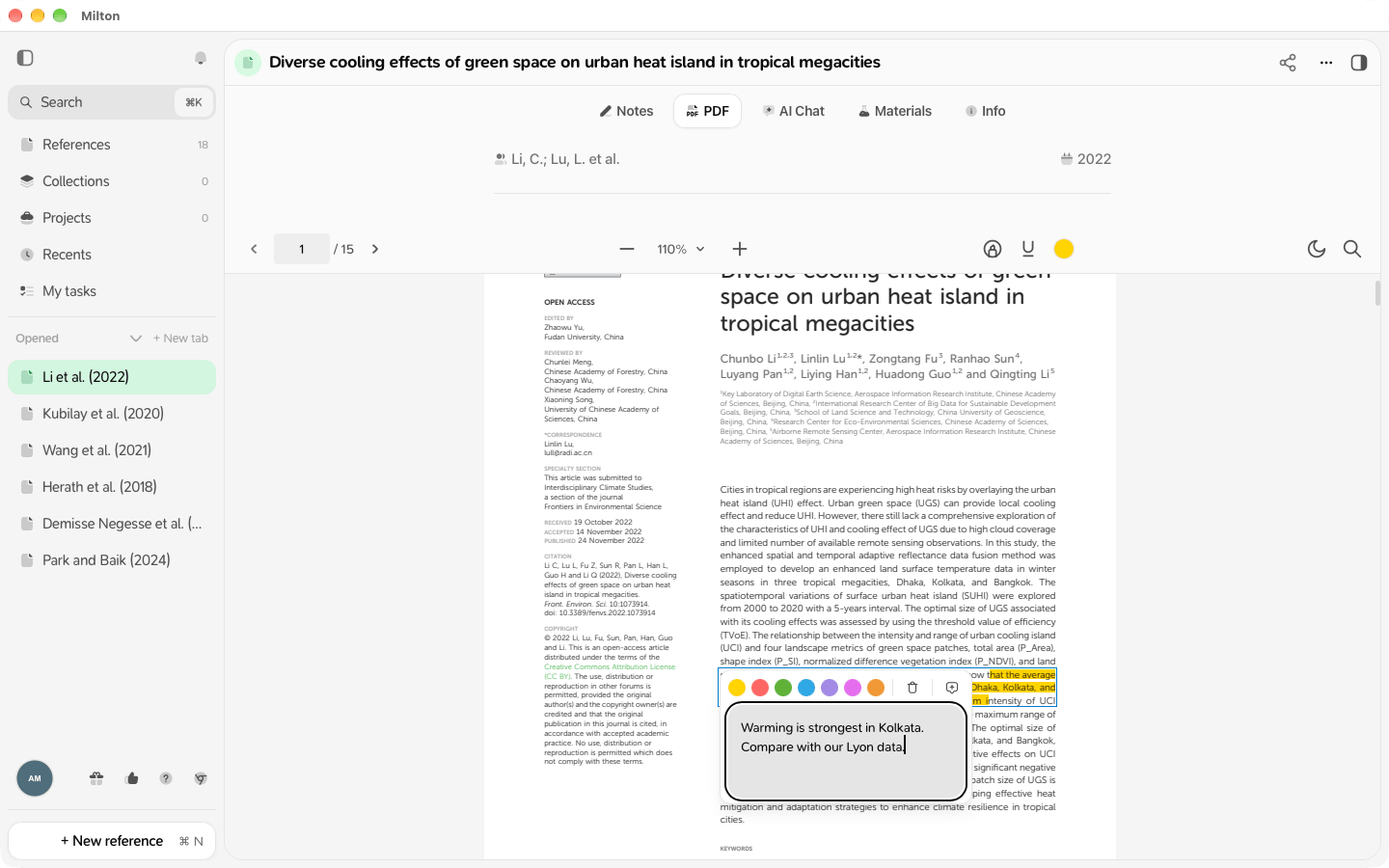
Highlight or underline
Quick way: select text. A small toolbar appears: choose Highlight or Underline, then click a colour. Or press H to highlight or U to underline the selection.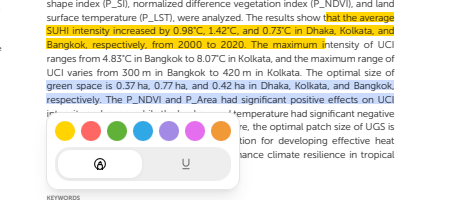
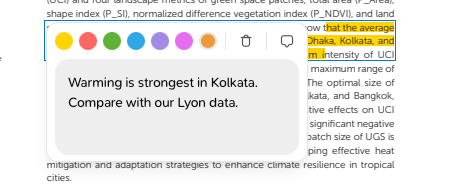
Comment, recolour or delete a highlight
Click the highlight:- Add comment (or Edit comment): type and click away to save.
- Change colour to …
- Delete annotation
No PDF?
The PDF tab shows No PDF attached. Click Try to find PDF automatically to look for a free version online, or Attach PDF to add one from your device.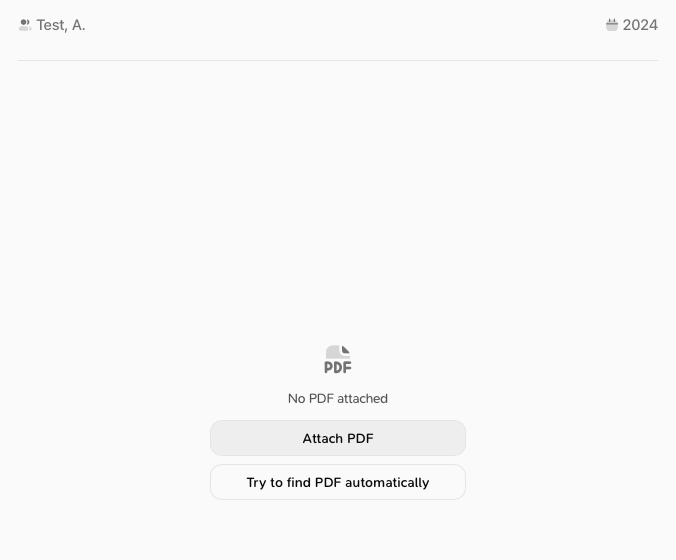
Read two things side by side
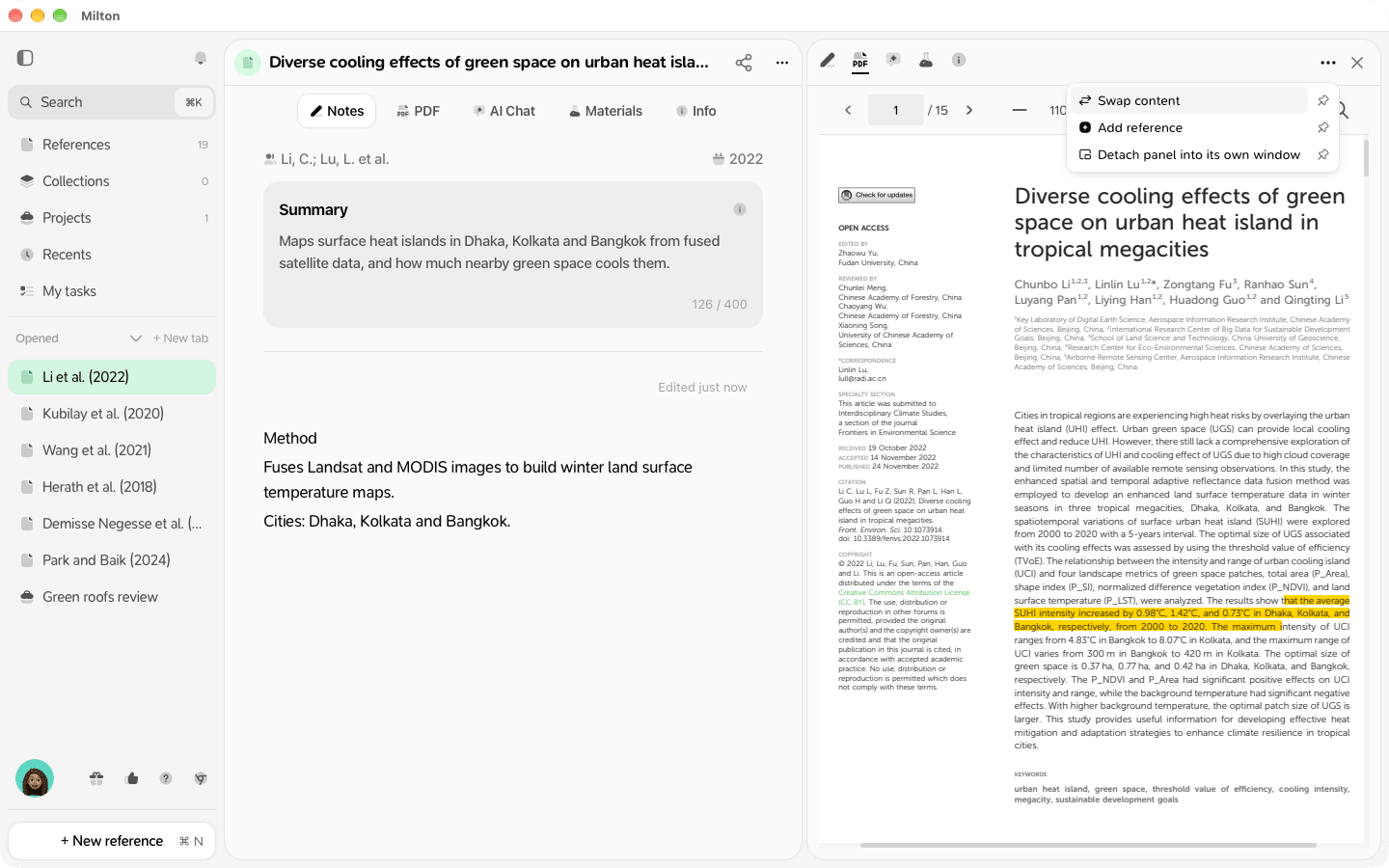
Right-click the PDF tab (or any other tab of the reference) and choose Open in side panel to keep it open while you work elsewhere, for example while writing your notes.
- the reference’s tabs, as icons (Notes, PDF, AI Chat, Materials, Info), when the panel shows the reference you have open;
- More options (⋯): Swap content (swap the panel and the main view), Add reference (show a second reference in the panel) and Detach panel into its own window. Once detached, the item reads Focus panel window;
- Collapse panel (×) closes the panel.
- Scanned PDFs (images of pages) can’t be searched or used by AI on the free plan. With a subscription, Milton reads them automatically (OCR).
- Highlights and comments are backed up and synced with a subscription. On the free plan, they stay on this device.
- Your highlights are never shared with co-authors or published.