

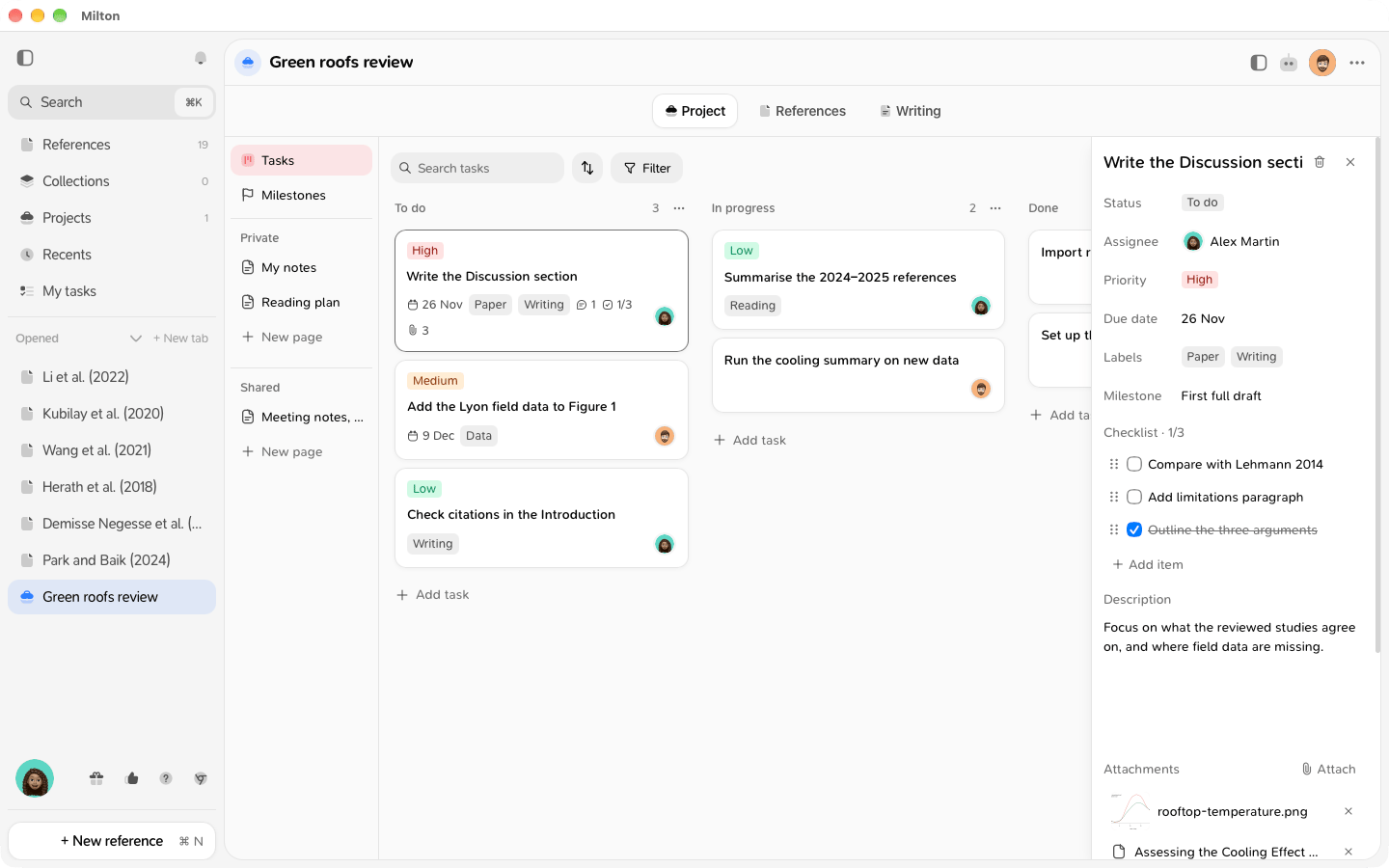
Rename a task
Click the title at the top of the panel, type, then press Enter. Escape cancels what you typed.Set the details
Click a field’s value to change it:- Status: the task’s column. Picking one moves the task to the end of that column.
-
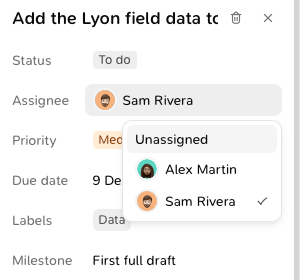
Assignee: one person, or Unassigned. You can assign a task to yourself, the project’s owner or an editor; not to a viewer.
- Priority: None, Low, Medium or High.
-
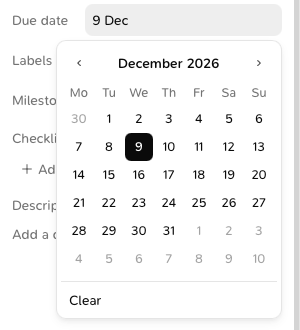
Due date: pick a day in the calendar. Clear removes the date.
-
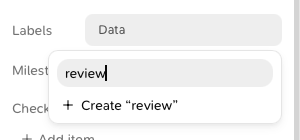
Labels: type to find a label, or to create one with Create “…”. Click a label to add or remove it. A task can have several labels.
- Milestone: None, or one of the project’s milestones. See Milestones.
Write a description
Type in Description. It uses the same editor as project pages, so you can add lists, to-dos, images, and links to pages, references and files with [[ and @. See Link pages and mention people.More in the panel
Good to know
- A due date that has passed shows in red, unless the task is in the last column.
- Viewers see every field but can’t change them.
- If a co-author deletes the task while you have it open, the panel says “This task was deleted.” Editors can click Undo to bring it back.