

1. Connect Zotero
- Go to Settings → Zotero integration.
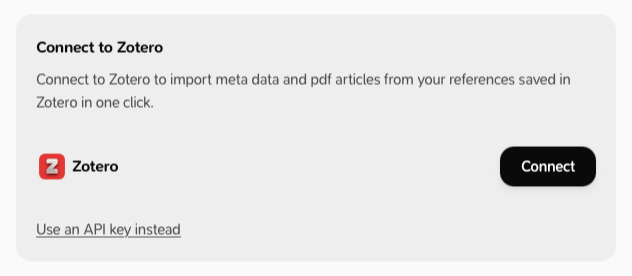
- Under Connect to Zotero, click Connect.
- Your browser opens zotero.org. Sign in if needed and accept the connection. Milton asks for read-only access.
- Go back to Milton. It shows the connection as done.
2. Import your library
- In Settings → Zotero integration, under Import or re-import my Zotero library, click Import. (When your library is empty, you can also click Import from Zotero on the References page.)
- In Import references from Zotero:
- The References tab lists your items. Use Select all or tick the ones you want.
- The Folders tab lists your Zotero collections. Each folder you tick becomes a Milton project.
- Click Import.
What comes over
- All the bibliographic details, and the date you added each item
- The first PDF of each item, including linked files and ZotFile PDFs. PDFs synced through WebDAV come over only if Zotero has already downloaded them to your device.
- Child notes, added to the reference’s notes under “Note imported from Zotero”
- Highlights and underlines, with their colour and comment
- Zotero’s Extra field, as a custom property called “Extra”
- Group libraries, as projects