

Search
Type in Search tasks. Milton shows the tasks whose title or labels contain every word you typed. Case and accents don’t matter.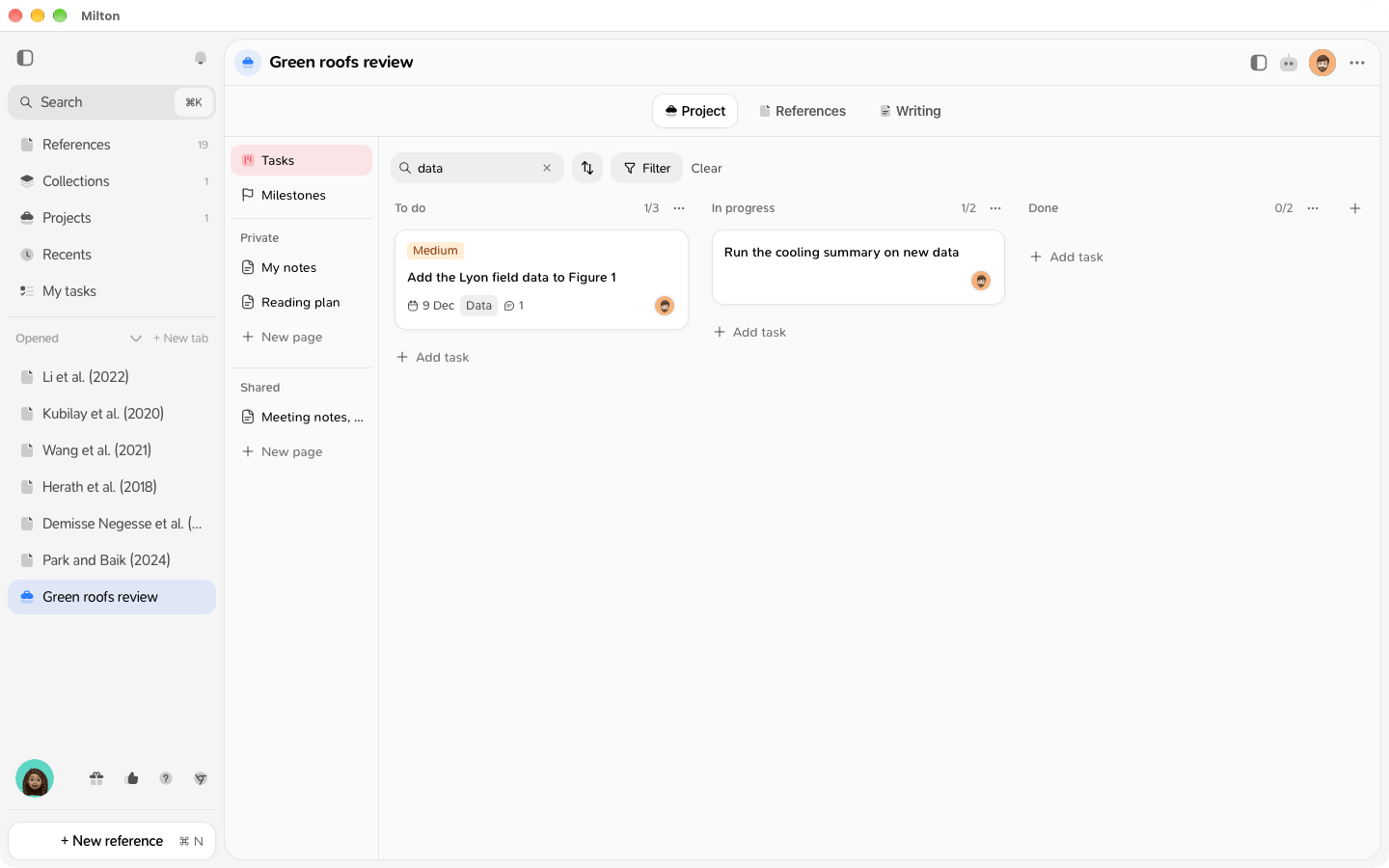
Filter
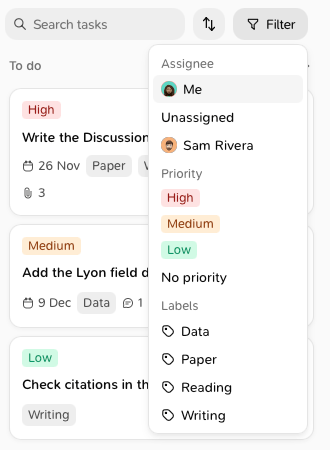
Click Filter and pick one or more values:- Assignee: Me, Unassigned, or a member of the project
- Priority: High, Medium, Low or No priority
- Labels: the board’s labels
Sort
Click the sort icon (Sort by) and choose Manual, Due date, Priority, Created or Title. Tasks are sorted inside each column. Manual is the order you set by dragging.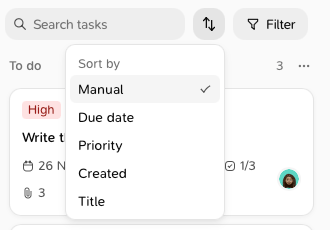
Clear everything
Click Clear in the bar to remove the search, the filters and the sort at once.Good to know
- While a search or filter is on, each column shows how many of its tasks are visible, for example “2/7”. If nothing matches, the board says “No tasks match.”
- While the board is searched, filtered or sorted, you can still drag a task to another column, but not reorder it within its column.
- Milton remembers your search, filters and sort for each board, on this device.